First Steps with OpenFrame
Welcome to OpenFrame! After completing the quick start setup, this guide will walk you through the essential first steps to get productive with the platform.
Your First 5 Actions
Here are the first 5 things you should do after getting OpenFrame running:
1. Complete Your Tenant Setup
Navigate to Settings → Company and Users:
✅ Set up your company profile
✅ Configure your primary contact information
✅ Upload your company logo
✅ Set your timezone and locale preferences
Why this matters: Proper tenant configuration ensures all features work correctly and data is properly attributed.
2. Create Your First Organization
Organizations represent your clients in OpenFrame. Create a test organization:
Go to Organizations → New Organization
Fill in the basic details:
- Name: "Demo Client MSP"
- Contact Email: "admin@democlient.com"
- Phone: Your test number
- Address: Your test address
Save the organization
Expected result: You should see the organization listed in your dashboard with a status of "Active".
3. Register Your First Device
Test the device registration process:
- Navigate to Devices → New Device
- Copy the registration command provided
- Run it on a test machine (or virtual machine):
# Example registration command (yours will be different)
curl -sSL https://install.openframe.dev/register | bash -s -- \
  --tenant-id=your-tenant-id \
  --registration-secret=your-secret
- Wait 1-2 minutes and refresh the Devices page
Expected result: Your test device appears in the devices list with connection status and basic hardware information.
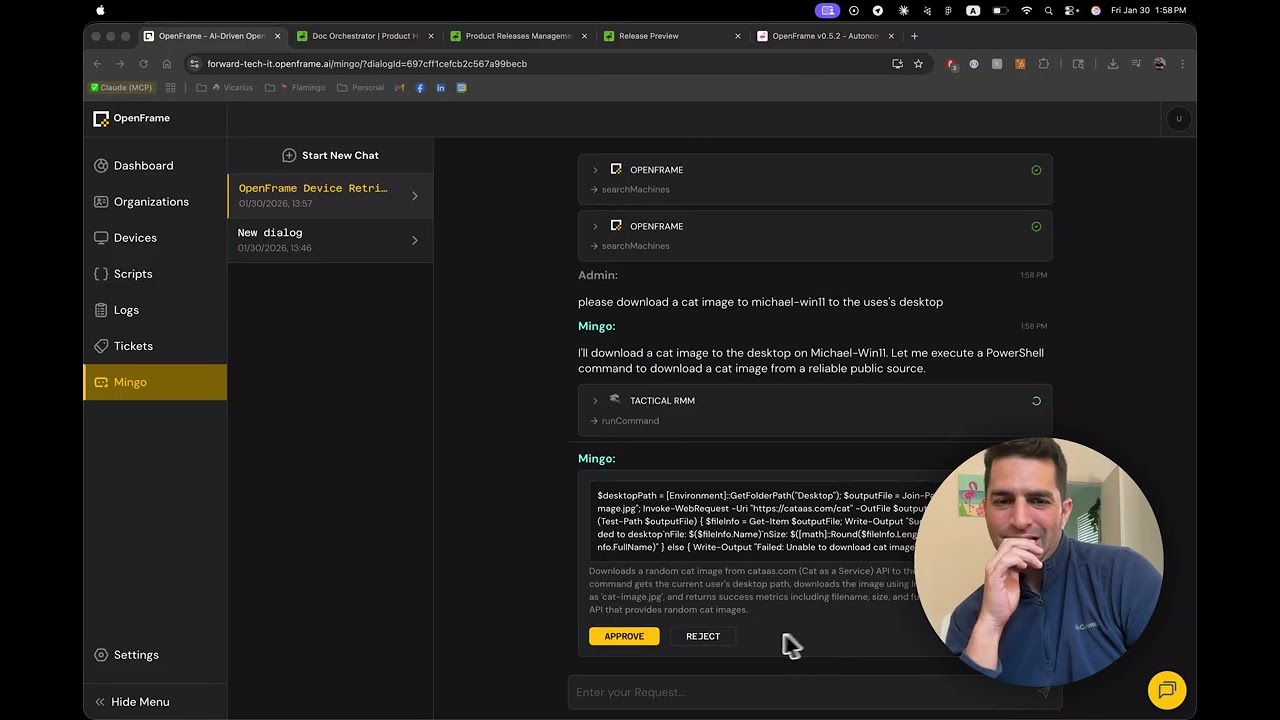
4. Meet Mingo, Your AI Assistant
Explore the AI capabilities that make OpenFrame powerful:
- Navigate to Mingo in the sidebar
- Start with these example conversations:
"Help me understand my current infrastructure setup"

"What devices need attention?"

"Create a maintenance checklist for this month"

"Explain what services are currently running"
Expected result: Mingo provides intelligent responses based on your platform data and suggests actionable next steps.
5. Generate Your First API Key
Set up programmatic access for integrations:
Go to Settings → API Keys
Click Create New API Key
Fill in the details:
- Name: "Development Testing"
- Description: "For learning and testing API endpoints"
- Permissions: Start with "Read Only"
Copy and save the API key securely
Expected result: You receive a secure API key that you can use to access OpenFrame's external APIs programmatically.
Essential Platform Features to Explore
Device Management
Navigate to: Devices
Key capabilities:
- Real-time status monitoring - See device health, connectivity, and performance
- Remote access - Built-in remote desktop and file management
- Agent management - Install, update, and configure device agents
- Compliance tracking - Monitor security compliance and policies
Try this: Click on your registered device to explore the detailed device view with tabs for hardware, software, security, and logs.
Organization Management
Navigate to: Organizations
Key capabilities:
- Client hierarchy - Organize customers and their devices
- Contact management - Store and manage client contacts
- Service tracking - Monitor service levels and agreements
- Billing integration - Track resources and usage per organization
Try this: Edit your demo organization to add additional contact information and explore the organization detail view.
AI-Powered Insights
Navigate to: Mingo
Key capabilities:
- Intelligent triage - AI automatically prioritizes alerts and incidents
- Automated responses - Mingo can take action on routine issues
- Knowledge synthesis - Ask questions and get answers from your infrastructure data
- Workflow automation - Create custom AI-powered workflows
Try this: Ask Mingo "What would you recommend as my next steps for securing my infrastructure?" and follow the guidance provided.
Analytics and Monitoring
Navigate to: Dashboard
Key capabilities:
- Real-time metrics - System health, performance, and usage statistics
- Custom dashboards - Create views tailored to your needs
- Alert management - Configure and respond to system alerts
- Trend analysis - Historical data and predictive insights
Try this: Explore the dashboard widgets and customize the view to show the metrics most relevant to your MSP operations.
External API Integration
Use your API key from step 5:
# Test API connectivity
curl -H "X-API-Key: your-api-key" \
  http://localhost:8083/api/v1/organizations

# Get device information
curl -H "X-API-Key: your-api-key" \
  http://localhost:8083/api/v1/devices

# Retrieve recent events
curl -H "X-API-Key: your-api-key" \
  http://localhost:8083/api/v1/events?limit=10
Try this: Use the API to retrieve data and experiment with building custom integrations or reports.
Common Initial Configuration Tasks
Configure SSO (Optional)
If your organization uses Google Workspace or Azure AD:
- Go to Settings → SSO Configuration
- Choose your provider (Google or Microsoft)
- Follow the setup wizard to configure OAuth2 integration
- Test the SSO flow with a test user
Set Up User Roles
Invite team members and configure access:
- Go to Settings → Company and Users
- Click Add Users
- Send invitations with appropriate roles:
- Admin: Full platform access
- Technician: Device and incident management
- Viewer: Read-only access for reporting
Configure AI Policies
Customize how Mingo interacts with your systems:
- Go to Settings → AI Settings
- Review and configure AI policies:
- Auto-approval thresholds for routine tasks
- Escalation rules for critical incidents
- Integration permissions for external tools
Test Integrations
If you have existing MSP tools, explore integration options:
- Check the integrations available in Settings → Architecture
- Configure connections to existing RMM/PSA tools
- Test data synchronization and event forwarding
Expected Learning Outcomes
After completing these first steps, you should understand:
Platform Navigation
- ✅ How to navigate between core modules
- ✅ Where to find configuration settings
- ✅ How to access help and documentation
Core Workflows
- ✅ Device registration and management process
- ✅ Organization and client management
- ✅ AI assistant interaction patterns
- ✅ API access and authentication
System Architecture
- ✅ Multi-tenant isolation model
- ✅ Role-based access control
- ✅ Event-driven data processing
- ✅ Microservice communication patterns
Automation Capabilities
- ✅ AI-powered incident triage
- ✅ Automated response workflows
- ✅ Intelligent alert filtering
- ✅ Custom integration possibilities
Performance and Scaling Tips
As you start using OpenFrame more heavily:
Monitor Resource Usage
# Check service resource consumption
docker stats

# Monitor database performance
docker compose exec mongodb mongostat

# View service logs
docker compose logs -f openframe-api
Optimize for Your Workload
- Device-heavy: Increase Client Service memory allocation
- Analytics-heavy: Optimize Pinot segment configuration
- High-event volume: Scale Stream Service horizontally
Backup Strategy
- MongoDB: Regular database backups for transactional data
- Configuration: Export tenant settings and configurations
- API Keys: Secure storage of authentication credentials
Common Questions and Next Steps
"How do I connect my existing RMM tool?"
OpenFrame supports integration with major RMM platforms. Check the external integrations documentation or ask Mingo: "How can I connect TacticalRMM to OpenFrame?"
"Can I customize the AI behavior?"
Yes! AI policies and automation rules are fully configurable. Explore the AI Settings section to customize Mingo's behavior for your specific workflows.
"What's the recommended way to scale this for production?"
For production deployments, consider the Kubernetes deployment guides and horizontal scaling patterns documented in the architecture section.
"How do I get help when I'm stuck?"
- Ask Mingo - The AI assistant has knowledge of platform capabilities
- Check documentation - Explore the architecture guides for detailed information
- Community support - Join the OpenMSP Slack for community help
Where to Go From Here
Now that you've completed the essential first steps:
For MSP Operations Teams
- Explore advanced device management and monitoring features
- Set up automated incident response workflows
- Configure client-facing dashboards and reports
For Developers and Integrators
- Dive into the API documentation and SDK examples
- Explore the microservice architecture for custom extensions
- Learn about the event streaming patterns for real-time integrations
For System Administrators
- Review security configurations and access controls
- Plan production deployment and scaling strategies
- Set up monitoring, backup, and disaster recovery procedures
🚀 You're now ready to harness the full power of OpenFrame! Continue exploring the platform features and building your AI-powered MSP operations.